How to Automate Shopify Abandoned Cart Emails With ChatGPT: A Small Store Guide

Someone adds a candle to their basket, types in their email, and then the doorbell rings. They never come back. It happens in every store, every day.
The good news is that Shopify can email these shoppers for you. This guide covers Shopify abandoned cart email automation from start to finish, and it keeps two jobs separate. Shopify’s own messaging automation sends the emails. ChatGPT only helps you write better ones.
By the end, you will know how to set the automation up in your own store, have draft copy you can adapt, and have a short test routine to follow before anything reaches a real customer.
What You Need Before Automating Abandoned Cart Emails
You don’t need much: a Shopify store and access to ChatGPT. How long setup takes depends on your store, the email tools already running on it, and how much copy you want to write. Still, a few things are worth sorting out first, mainly who you are allowed to email.
A Shopify store and a recovery workflow
Shopify’s abandoned checkout emails work for the online store and buy button sales channels. Shopify’s documentation says checkouts abandoned on POS, the Shop app, or third-party channels don’t get the automation.
So if most of your sales come from a marketplace, this guide won’t reach those shoppers.
ChatGPT for drafting and editing email copy
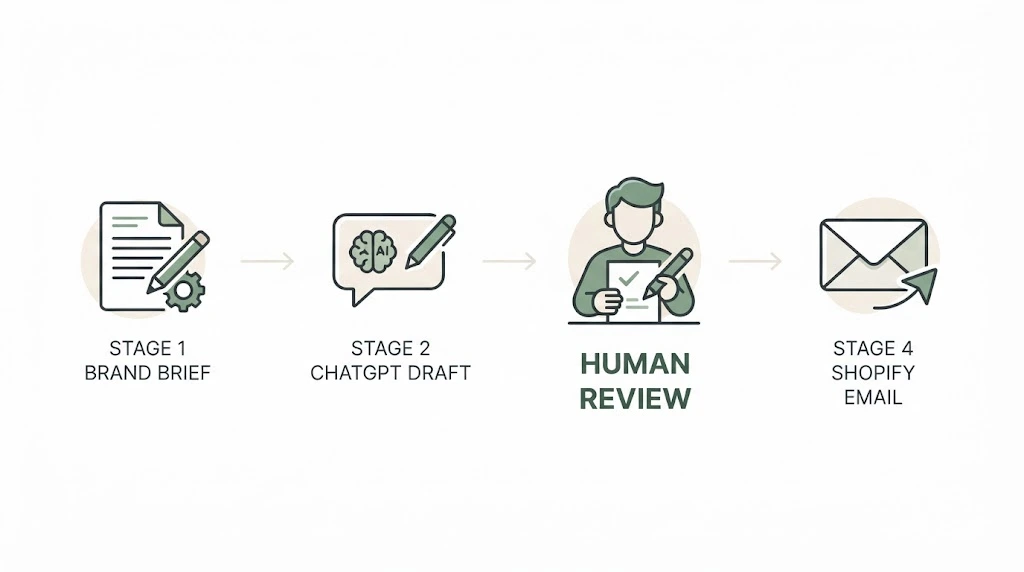
ChatGPT is a writing helper here. It doesn’t connect to your store, and it doesn’t send anything. You paste its drafts into Shopify’s email editor after you have read and fixed them.
Think of it as a quick first-draft partner, not an autopilot.
Customer eligibility and email consent
By default, Shopify’s abandoned checkout automation goes only to customers who are subscribed to email marketing. The email settings let you choose all customers instead, but that is a decision to make carefully.
Shopify’s own guidance on collecting customer contact information says to send promotional content only to customers who have agreed to receive marketing. It also notes that if your store sends abandoned cart reminders, you should review the wording shown next to the marketing consent checkbox at checkout, because the default text only mentions news and offers. You can edit it under Settings, then Checkout, then Marketing opt-in.
Consent rules differ by country, and Shopify’s own settings aren’t a substitute for legal advice. Check what applies to your customers, and talk to a lawyer if you’re unsure.
When a third-party app may be necessary
Native tools cover the basics. If you later need SMS, detailed segmentation, or reports beyond what Shopify shows, an app may make sense. We come back to that decision near the end, so don’t buy anything yet.
Set Up Shopify Abandoned Cart Email Automation (Built-In Method)
Shopify’s built-in route is the simplest place to start. It lives in the Shopify Messaging app, and the steps below walk you through it.
Abandoned cart vs. abandoned checkout
These two terms get mixed up constantly, and Shopify treats them differently.
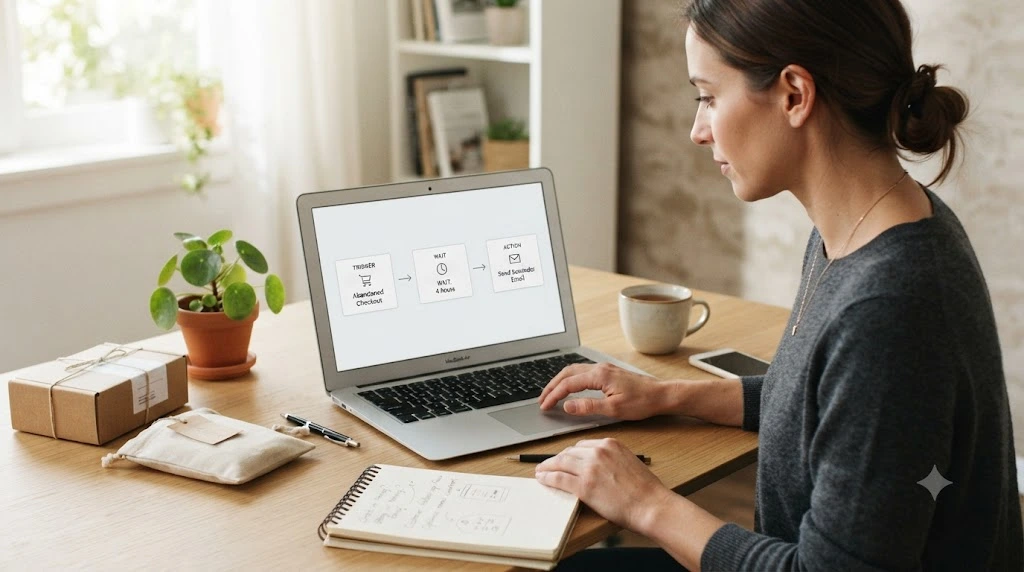
A cart is just items a shopper added. An abandoned checkout is when the shopper started checking out and left. Shopify’s recovery emails go out for abandoned checkouts, which means the shopper has to give you an email address first.
Many “abandoned carts” never reach that stage, so Shopify never has an address to write to.
Find the relevant Shopify Messaging automation.
In your Shopify admin, the path in the current help documentation is:
- Go to Apps, then Messaging.
- Click Automations.
- Click View templates and choose the Abandoned checkout template.
- Click Edit if you want to change the email or workflow.
- Click Turn on automation.
One warning from Shopify: read it before you click. Turn on automation: opting in to the new automation is a permanent change. You can’t go back to the older abandoned checkout emails afterwards. The steps above match Shopify’s Help Center page at the time of writing. Menus move around, so if your screen looks different, check the current Shopify page before changing any setting.
Configure the trigger and email content.
Open the automation and choose Edit, then Edit email. You can change the customer group, subject line, preview text, and sender address. The design editor lets you add your logo and brand colors.
You can also add a discount, but you don’t have to. Hold off on that until you read the sequence section below.
Review audience rules and follow-up conditions.
Shopify skips the email in some situations. It is worth knowing them so you don’t wonder later why a test never arrived:
- The customer already completed a purchase before the email was due.
- None of the items in the checkout are available.
- Shopify Payments blocked the attempt as high risk.
- The customer abandoned a more recent checkout, and the wait time from that one hasn’t passed.
- The customer isn’t subscribed to marketing (with the default audience setting).
The automation runs from Shopify Messaging. Shopify Flow is a separate, optional tool, and Shopify’s documentation says it can be used to edit the automation’s workflow, including the wait time. You don’t need it to turn the automation on. If you create a second abandoned checkout automation, Shopify’s documentation says it defaults to a 10-hour wait and sends only to subscribed customers.
Still choosing where to sell? Compare ecommerce platforms with abandoned-cart recovery features before you commit to one.
Use ChatGPT to Write Abandoned Cart Emails.
Here is where ChatGPT earns its place. Shopify ships a default template, but a store-specific email usually reads better than a generic one.
Below are four copy-paste prompts, in the order you would use them. Swap the details in square brackets for your own.
Provide product, audience, and brand details.
ChatGPT writes generic copy when it knows nothing about you. Give it a short brand brief first.
Prompt 1: brand brief
I run a small Shopify store called [store name] that sells [product type]
to [audience]. Our tone is [warm / playful / calm / direct]. Our shipping
policy is [policy]. Our return policy is [policy]. We do NOT offer
discounts in the first email.

Summarize this as a short brand brief I can reuse in later prompts.
Do not add any facts I haven't given you.
The last line matters. It stops ChatGPT from inventing a return policy.
Generate email subject lines and preview text.
Subject lines decide whether anyone opens the email. Ask for plenty of options, then pick two to test.
Prompt 2: subject lines and preview text
Using the brand brief above, write 10 abandoned cart email subject lines
for a shopper who left [product name] at checkout. Keep each under 50
characters. For each one, add preview text under 90 characters.
No false urgency, no all caps, no claims about stock unless I say so.
Sample output (illustrative): written for this guide to show the format. Your results will differ.)
| Subject line | Preview text |
|---|---|
| Still thinking about it? | Your candle is waiting where you left it. |
| Your checkout is saved. | Pick up right where you stopped. |
| A quick note about your order | Questions about shipping or returns? We have answers. |
Notice what these don’t do. None of them shouts, and none claims the item is “almost gone.”
Draft a first reminder and a follow-up.
Now ask for the emails themselves. Tell ChatGPT what each one is for, because the first and second should do different jobs.
Prompt 3: first reminder and follow-up
Write two abandoned checkout emails for [store name]. Email 1 is a friendly
reminder with one clear button. Email 2 goes out later and answers common
doubts about shipping, returns and quality. Keep each under 120 words.
Leave placeholders like [PRODUCT BLOCK] where Shopify will insert the
items. Do not mention a discount or make claims I haven't supplied.
Sample output, Email 1 (illustrative)
Subject: Still thinking about it?
Hi there,
You left a few things at checkout. No rush. We’ve kept everything exactly as you left it.
[PRODUCT BLOCK]
[Return to checkout]
If you have a question about shipping or returns, just reply to this email and a real person will get back to you.
Kora & Co.
Sample output, Email 2 (illustrative)
Subject: A quick note about your order
Hi again,
Buying online means taking a small leap, so here is the practical stuff: [SHIPPING POLICY], [RETURN POLICY].
[PRODUCT BLOCK]
[Finish my order]
Still unsure? Reply and tell us what’s holding you back.
Kora & Co.
(Kora & Co. is a made-up store used only for this example.)
Check accuracy and remove unsupported claims.
Never publish a first draft. ChatGPT can slip in things that sound lovely and aren’t true. A line like “Our customers say it’s the best candle they’ve ever owned” is a typical example. If you can’t prove it, delete it.
Prompt 4: fact check
Here is my draft email: [paste draft]. Here are the only facts that are
true about my business: [list facts]. Highlight every sentence that makes
a claim not covered by these facts, and suggest a safer version of each.
Then read the final version on your phone, out loud if you can. Awkward phrasing is much easier to catch that way.
Build a Simple Abandoned Checkout Email Sequence
One email can work. A short sequence gives the shopper a second and third chance without feeling like nagging.
Here is a real example of why tone matters. Amundsen Sports, a Norwegian outdoor clothing brand, shared its abandoned cart results in an Omnisend customer story. Its abandoned cart email, which carried no discount, had a 57% conversion rate among people who clicked through, according to the case study. It accounted for 10.8% of the brand’s Omnisend revenue from 0.9% of its sends.
Take that with a few grains of salt. It is a vendor-published story, the store runs on WooCommerce rather than Shopify, and the figures describe that brand only. The takeaway is modest: a plain, on-brand reminder can carry real weight. It is not a benchmark for your store.
A sample timing plan
Timing is the part most guides skip, so here is a starting point. This three-email plan is an example of how a sequence could work. It is not a claim that Shopify’s built-in automation provides every step for you, and the gaps below are not a tested rule. Your products, price points, and customers decide what works.
| Job | Example timing (after the checkout is abandoned) | Discount? | |
|---|---|---|---|
| 1. Reminder | Show the items, one button, and offer help. | A few hours later | No |
| 2. Objections | Answer shipping, returns, and quality doubts. | About a day after the first email | No |
| 3. Final reminder (optional) | A last, low-pressure nudge | Two to three days after the first email | Optional, keep it small. |
For reference, Shopify’s documentation says a second abandoned checkout automation defaults to a 10-hour wait, and that you can edit the wait time through Shopify Flow. Omnisend, an email app vendor, suggests a different rhythm in its own guide: a first email after 30 to 60 minutes, then follow-ups at about 24 and 72 hours. Two sources, two answers. That is a good reason to pick one schedule and compare results over time, not to treat either as the rule.
One thing to check in your own admin: what your automation can actually send. Shopify’s documentation describes the abandoned checkout automation and its wait time, but it doesn’t promise a ready-made three-email sequence. If your workflow sends only one email, the second and third may need a different setup, such as an edited workflow or a third-party app. Look at the workflow before you plan three emails, and start with the first one if that’s all you can build today.
First reminder
Timing: the first email goes out after your chosen wait. A shorter wait catches people still thinking about it, while a longer one avoids emailing someone who is about to finish on their own. Shopify skips the email if the order is completed before it’s due.
Keep the content light. Show the items, add one button, and offer help. No discount yet.
Follow-up addressing purchase objections
Timing: roughly a day after the first email in the sample plan, which gives the shopper time to think it over and come back alone.
Most shoppers who leave have a reason. Maybe shipping costs, return rules, or sizing. The second email speaks to those doubts directly.
Use the policies you actually have. That is where the fact-check prompt above earns its keep.
Optional final reminder
Timing: if you send a third email, leave a longer gap, such as two to three days after the first. A longer gap can help it feel less like nagging.
A third email is optional. If you send one, a small incentive is one option, but you don’t have to add one. Shopify has a help page on discounts for abandoned checkout recovery emails if you decide to.
If you do offer a discount, ask yourself whether the customer would have come back anyway. That question matters more than the percentage.
Stop messages after a completed purchase
Shopify doesn’t send the recovery email if a customer completes a purchase before it’s due. Still, check this yourself in testing, especially if another app or workflow is also running.
Test the Automation Before Turning It On
A broken email goes out to real people, and it can’t be recalled. So test first. A little checking now saves a lot of awkward apologies later.
Verify recovery links and product details
Start a checkout on your own store with a personal email address. Add a real product, enter your email, and leave. Make sure your test email is subscribed to marketing, or the default audience rule will skip you.
When the email arrives, click the button. It should take you back to your checkout with the right items.
Test completed-purchase suppression
Now repeat the test, but complete the order before the email is due. You shouldn’t receive a recovery email. If you do, stop and find out why before going live.
Check discount logic and mobile layout
If your email includes a discount, try the code at checkout. Check that it applies to the right products, expires when you expect, and doesn’t stack with something you didn’t intend.
Then open the email on a phone. Shopify’s editor previews help, but your own inbox is the real test.
Verify that duplicate automations do not send overlapping emails
This one catches people out. Shopify says you can keep using the older abandoned checkout email under Settings, then Checkout until it’s removed, and the new automation lives in Messaging. An email app can add a third sender on top.
Only one system should be sending abandoned checkout emails. If you have edited the workflow in Shopify Flow, check that too. Flow is optional, and it is not a second way to send the same emails, so don’t set one up alongside the Messaging automation unless you know what each one does.
Measure Abandoned Cart Email Recovery Performance
Switching the automation on is the start, not the finish. A few numbers tell you whether it’s worth keeping.
Track delivered emails and clicks
In Shopify Messaging, the Automations page shows performance data for the abandoned checkout automation. You can also open an automation, view recent activity, and see delivery details for each email sent.
Under Orders, then Abandoned checkouts, the Email status column shows what happened to each one.
Measure recovered orders and attributed revenue
Two numbers sound alike here, and they are not the same thing.
Recovered checkouts is Shopify’s label. Per Shopify’s documentation, a checkout counts as recovered once an email has been sent and the customer completes the order. That includes shoppers who clicked your link and shoppers who simply came back on their own.
Email-attributed conversions are orders you can trace to someone clicking the link in the email. That depends on how you track clicks, for example the reporting in Shopify Messaging or tagged links in your analytics tool.
The first number can be bigger than the second, and that gap is worth paying attention to. Some of those recovered checkouts may have been completed without the email. Shopify’s recovered count can’t tell you how many.
So don’t read “recovered” as “the email caused this order.” Report both numbers side by side, and describe the first as checkouts completed after an email was sent, not as revenue the email earned.
You can also cross-check recovered orders against your payment records. If you want to do that properly, here’s how to reconcile payment gateway payouts with completed orders.
Account for discounts and email costs
Revenue isn’t the same as profit. If you gave a discount, subtract it. If you pay for an email app, include that too.
A recovered order with a heavy discount can be worth less than you think.
Compare results without assuming AI caused any uplift
It’s tempting to say “ChatGPT wrote it, so it’s working.” Don’t. Seasons change, traffic changes, and so does the product mix.
Change one thing at a time, such as the subject line, and give it enough orders to say something meaningful. Judge the copy on its results, not on how it was written.
Do You Need a Paid Abandoned Cart Email App?
Maybe. Maybe not. It depends on what you need beyond what Shopify gives you.
When Shopify’s built-in tools may be enough
If you’re a small store with a handful of abandoned checkouts a week, a simple reminder with a decent follow-up can be enough. Starting simple also keeps your costs low while you learn what your customers respond to.
When advanced integrations or segmentation justify an app
An app may be worth a look if you need things like SMS, advanced segmentation, or detailed reporting that Shopify’s reports don’t offer. Another common trigger is wanting to reach shoppers earlier than the checkout stage.
Before choosing, check what each app does with abandoned checkouts in practice, not just what its homepage says.
Compare costs before adding another subscription
Add up the monthly cost, any contact-based pricing, and the time to set it up. Then estimate how many extra recovered orders you would need to cover it.
If the numbers are fuzzy, wait. You can always add an app later, but a cancelled subscription still costs you a month.
Common Mistakes to Avoid
Most abandoned cart problems are small and fixable. Here are the ones that turn up most.
Mixing up cart and checkout. The wrong terminology leads to the wrong setup. Shopify emails abandoned checkouts, so plan around that.
Running two automations at once. Customers get double emails, which feels pushy.
Discounting by reflex. If your first email already offers money off, you may be training shoppers to abandon on purpose.
Publishing AI claims you can’t back up. Fake reviews, invented policies and made-up stock levels hurt trust fast.
Emailing the wrong people. Stick to shoppers who are eligible to receive marketing from you.
One more thing. Some “abandoned” checkouts aren’t about interest at all. Shopify lists payment failures, expired cards and incorrect billing details among the reasons a checkout can end up abandoned. If you use a third-party gateway, a wrong return URL can also leave a checkout looking abandoned even though the payment went through. It’s worth a look to audit your payment gateway setup so genuine payment problems don’t hide among the real abandoners. An audit won’t recover carts by itself, but it can show you which ones were never going to be recovered by email.
Frequently Asked Questions
Can ChatGPT automate Shopify emails by itself?
No. ChatGPT writes text, and Shopify sends the emails. You paste your reviewed copy into Shopify’s email editor, then switch on the automation in Shopify Messaging. Anything beyond that would need extra tools you set up yourself.
Can I set up abandoned-checkout emails without a paid app?
Yes, for the basics. Shopify’s Messaging app includes an abandoned checkout automation you can turn on and edit. Whether it covers everything you need depends on your plan and goals, so check the current Help Center pages.
What should an abandoned-cart email include?
A clear subject line, the items the shopper left, one obvious button back to checkout, and a quick answer to common worries like shipping and returns. A discount is optional. Keep it short and written in your store’s voice.
How can I measure recovered orders?
Use the Automations page in Shopify Messaging and the Abandoned checkouts page in your Orders section. Remember that a checkout counts as recovered when the order is completed after the email, whether or not the customer clicked your link. Compare results over time rather than from one day.
Conclusion
Shopify abandoned cart email automation works best when three habits are in place. Start with Shopify’s built-in automation and read its settings carefully. Use ChatGPT to speed up the writing, not to replace your judgment. And test everything before a real customer sees it.
Start small. Turn on one automation, send one test checkout to your own inbox, and read the email on your phone. Once that works, you’ll have a baseline to improve from, and that beats guessing every time.
Next step: open Apps, then Messaging, then Automations in your Shopify admin and check which abandoned checkout automation is running today.